For information on the latest version, please have a look at GL013304.
6.6.2 minimal_rt_monitoring_sample.cpp
This example (2_minimal_rt_monitoring_sample.cpp) shows a minimal realtime
monitoring setup using the DRFLEx API:
open the realtime (RT) monitoring channel with
connect_rt_control(),configure the RT output format and cycle time,
register an RT monitoring callback (
set_on_rt_monitoring_data),and start/stop RT monitoring with simple console input.
Caution
Realtime monitoring and control are supported only on a real robot system.
This sample must be executed with a real controller IP (e.g. 192.168.137.100)
and ROBOT_SYSTEM_REAL.
This example is located in the following path:
API-DRFL/example/Linux_64/2_minimal_rt_monitoring_sample.cpp
See the example on the Doosan Robotics API-DRFL GitHub.
Overview & Global Configuration
The sample starts by selecting the DRCF protocol version and creating a global DRFLEx instance.
#define DRCF_VERSION 2 // Set 2 or 3 according to drcf version.

#include "../../include/DRFLEx.h"

#include <cstring>
#include <iostream>
#include <thread>

using namespace DRAFramework;

const std::string IP_ADDRESS = "192.168.137.100";
CDRFLEx robot; // Instance for APIs

bool get_control_access = false; // Variable to check control authority
bool is_standby = false;         // Variable to check whether the robot state is standby.

#define GREEN  "\033[1;32m"
#define CYAN   "\033[1;36m"
DRCF_VERSION: must match the controller firmware (e.g. 2 or 3).IP_ADDRESS: set to the real controller IP address.Color macros (
GREEN,CYAN) are used to print colored output in the terminal.
Realtime Connection Setup
The main function first opens the realtime monitoring connection.
int main() {
    // Connect to the drcf controller.
    bool ret = robot.connect_rt_control(IP_ADDRESS);
    std::cout << "open connection return value " << ret << std::endl;
    if (true != ret) {
        std::cout << "Cannot open connection to robot @ " << IP_ADDRESS
                  << std::endl;
        return 1;
    }

    // For rt-monitoring, we don't need to have "Getting control access".
    // however, for rt-writing like servoj_rt, we still need to have "control access" and "state standby".
connect_rt_control(IP_ADDRESS)opens the UDP realtime channel to the controller.If the connection fails (e.g. wrong IP, no real controller), the program prints an error and exits.
RT monitoring only (read-only) does not require control authority.
RT writing (e.g.
servoj_rt, torque commands) still requires control authority and STATE_STANDBY on the robot.
RT Monitoring Callback
The example registers a lambda callback to receive realtime state data.
robot.set_on_rt_monitoring_data([](LPRT_OUTPUT_DATA_LIST data)->void {
    auto ms = std::chrono::duration_cast<std::chrono::milliseconds>(
                std::chrono::system_clock::now().time_since_epoch()).count();
    printf(GREEN "[%.3f] === Robot State ===\n", ms / 1000.0);

    printf(CYAN "Joint Position: ");
    for (int i = 0; i < 6; ++i)
        printf("%.3f%s", data->actual_joint_position[i], (i < 5) ? ", " : "\n");

    printf(CYAN "Joint Velocity: ");
    for (int i = 0; i < 6; ++i)
        printf("%.3f%s", data->actual_joint_velocity[i], (i < 5) ? ", " : "\n");

    printf(CYAN "Joint Torque: ");
    for (int i = 0; i < 6; ++i)
        printf("%.3f%s", data->actual_joint_torque[i], (i < 5) ? ", " : "\n");

    printf(CYAN "Gravity Torque: ");
    for (int i = 0; i < 6; ++i)
        printf("%.3f%s", data->gravity_torque[i], (i < 5) ? ", " : "\n");

    // Example for visualizing dynamic matrices
    // Pretty matrix printer
    auto print_matrix = [](const char* name, float mat[6][6]) {
        printf(CYAN "%s:\n", name);
        for (int i = 0; i < 6; ++i) {
            printf(CYAN "  [");
            for (int j = 0; j < 6; ++j)
                printf(CYAN "%7.3f%s", mat[i][j], (j < 5) ? ", " : "");
            printf(CYAN "]\n");
        }
    };
    print_matrix("Jacobian Matrix", data->jacobian_matrix);
    print_matrix("Mass Matrix", data->mass_matrix);
    print_matrix("Coriolis Matrix", data->coriolis_matrix);
});
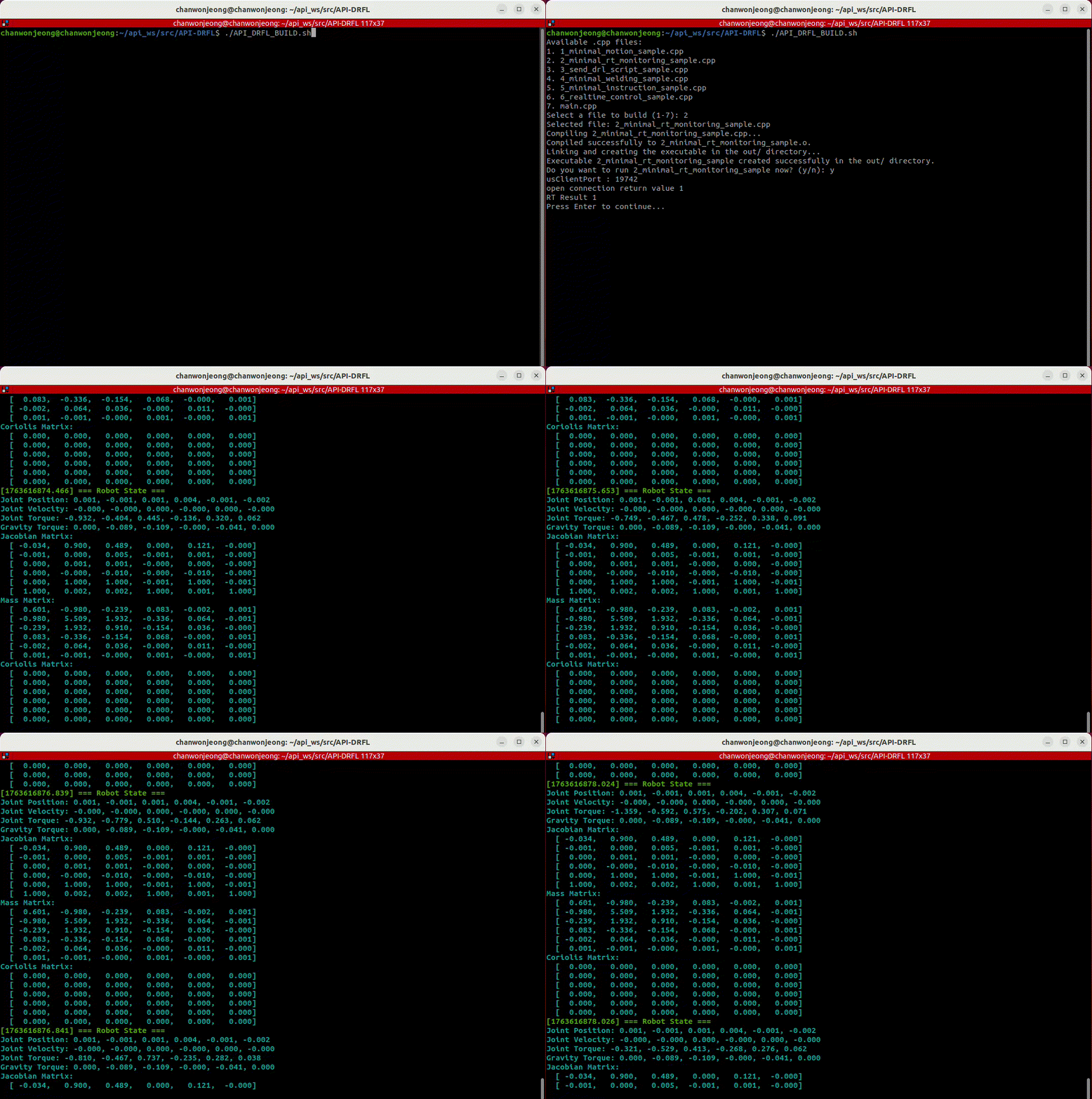
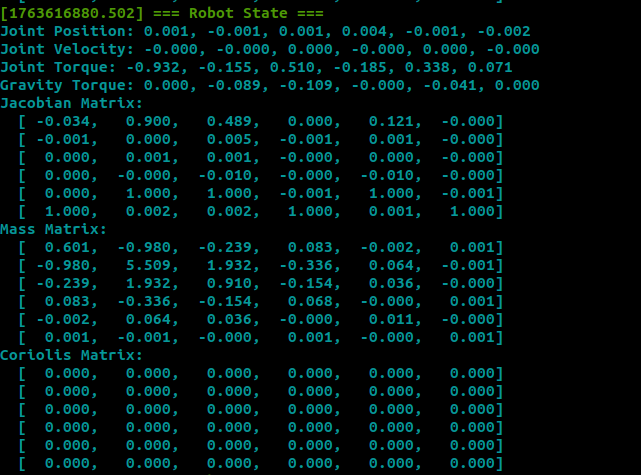
This callback is invoked periodically once realtime monitoring is started, and it prints a timestamp based on the local system clock, joint positions, joint velocities, joint torques, gravity torques, and dynamic matrices (Jacobian, Mass, Coriolis).
RT Session Configuration & Start
After registering the callback, the RT control output parameters are configured. set_rt_control_output() defines the data transmission version, cycle period, and allowable packet loss count. The start_rt_control() method begins the live data stream.
std::string version = "v1.0";
float period = 0.002;  // 2ms cycle
int losscount = 4;     // allowed packet loss
std::cout << "RT Result " << robot.set_rt_control_output(version, period, losscount) << std::endl;

std::cout << "Press Enter to continue...";
std::cin.get();  // Wait for user input before starting
robot.start_rt_control();

std::cout << "Press Enter to terminate...";
std::cin.get();  // Stop streaming
robot.disconnect_rt_control();
return 0;
RT Output
Before starting the RT stream, the program configures the output format.
std::string version = "v1.0";
float period = 0.002f;
int losscount = 4;
std::cout << "RT Result "
          << robot.set_rt_control_output(version, period, losscount)
          << std::endl;
version = "v1.0": selects the RT protocol version.period = 0.002: RT update period (2 ms = 500 Hz).losscount = 4: allowed consecutive packet loss count before the controller treats the connection as unstable.
If set_rt_control_output succeeds, the return value is printed to the console.
Start & Stop RT Monitoring
The example uses simple Enter key prompts to start and stop RT monitoring.
std::cout << "Press Enter to continue..." ;
std::cin.get();  // Waits for user to press Enter
robot.start_rt_control();

std::cout << "Press Enter to terminate..." ;
std::cin.get();  // Waits for user to press Enter
robot.disconnect_rt_control();
return 0;
After the first
Enter,start_rt_control()begins the realtime stream. From this point,OnRTMonitoringDatawill be called periodically.After the second
Enter,disconnect_rt_control()closes the realtime monitoring channel and the program exits.