cuMotion Integration
Overview
cuMotion provides GPU-accelerated motion planning for Doosan robots by integrating NVIDIA Isaac ROS with MoveIt 2 and the ROS 2 control stack.
This tutorial describes how to set up the full software environment and execute the cuMotion-based motion planning pipeline.
Note
This tutorial is based on the following validated environment:
Isaac ROS: Release 3.2
NVIDIA Driver: 570
CUDA: 12.8 (Docker base: 12.6)
ROS 2: Humble
System Prerequisites
Before configuring cuMotion, you must complete the official Isaac ROS base setup provided by NVIDIA. Only after completing the guide below, proceed with the Doosan + cuMotion integration steps described below. : Official Isaac ros setup guide
Note
In official setup guide, you must complete both steps:
Compute setup
Developer Environment Setup
Warning
Installing 560 drivers may cause compatibility issues with GPU-accelerated Docker containers due to driver/runtime mismatches. It is recommended to use the latest stable driver version (e.g., 570 series) to ensure compatibility with Isaac ROS and cuMotion.
Workspace Setup
This section describes the process of creating separate and independent workspaces for the NVIDIA Isaac ROS cuMotion stack and the Doosan ROS 2 robot control stack. By isolating these two environments, the system maintains a clean separation between GPU-accelerated core motion planning (Isaac ROS + cuMotion) and vendor-specific robot hardware control (Doosan ROS 2).
Isaac ROS Workspace
mkdir -p ~/workspaces/isaac_ros-dev/src
echo 'export ISAAC_ROS_WS="${HOME}/workspaces/isaac_ros-dev/"' >> ~/.bashrc
source ~/.bashrc
cd ~/workspaces/isaac_ros-dev/src

git clone --recursive -b release-3.2 https://github.com/NVIDIA-ISAAC-ROS/isaac_ros_common.git
git clone --recursive -b release-3.2 https://github.com/NVIDIA-ISAAC-ROS/isaac_ros_cumotion.git
Doosan ROS 2 + cuMotion Workspace
mkdir -p ~/ros2_ws/src
cd ~/ros2_ws/src

git clone -b humble https://github.com/DoosanRobotics/doosan-robot2.git
git clone -b humble https://github.com/DoosanRobotics/doosanrobotics_cumotion_driver
Container Execution
This step initializes and launches the Docker-based runtime environments required for the full cuMotion and Doosan ROS 2 integration. The startup-doosan.sh script prepares the Doosan cuMotion Docker environment by configuring the build context, applying required settings, and starting the Doosan-specific container for robot control and execution.
Next, the run_dev.sh script launches the NVIDIA Isaac ROS development container, which provides the GPU-accelerated runtime environment
for cuMotion and motion planning.
Command
Doosan cuMotion Docker Startup
cd ~/ros2_ws/src/cumotion/dsr_cumotion/docker
chmod +x startup-doosan.sh
./startup-doosan.sh
cd ~/workspaces/isaac_ros-dev/src/isaac_ros_common/scripts
./run_dev.sh
Warning
The Docker build may fail at the Mosquitto installation step in Dockerfile.x86_64 (around line 194). This is a known issue caused by Ubuntu release information changes during apt-get update. To resolve this, update the Mosquitto installation step as follows:
RUN --mount=type=cache,target=/var/cache/apt \
      apt-add-repository ppa:mosquitto-dev/mosquitto-ppa \
      && apt-get update --allow-releaseinfo-change \
      && apt-get install -y \
         mosquitto \
         mosquitto-clients
Environment Setup
source /opt/ros/humble/setup.bash
source /workspaces/isaac_ros-dev/install/setup.bash
source /workspaces/ros2_ws/install/setup.bash
cuMotion Launch
This section launches the full cuMotion-based motion planning and execution pipeline for the Doosan robot in either real hardware mode or virtual simulation mode.
In real mode, the system establishes a direct network connection to the physical robot controller using the specified IP address
and executes trajectories on the real hardware through the ROS 2 control interface.
In virtual mode, the same motion planning pipeline is executed against a
simulated robot instance, allowing safe algorithm testing, parameter tuning, and integration validation without physical hardware.
Command
Real Robot Mode
ros2 launch dsr_cumotion start_cumotion.launch.py \
  mode:=real host:=192.168.137.100 gripper:=none
Virtual Robot Mode
ros2 launch dsr_cumotion start_cumotion.launch.py \
  mode:=virtual host:=127.0.0.1 gripper:=none
Gripper Configuration
Arguments
gripper:=none– Robot onlygripper:=vgc10– OnRobot VGC10gripper:=2f85– Robotiq 2F-85
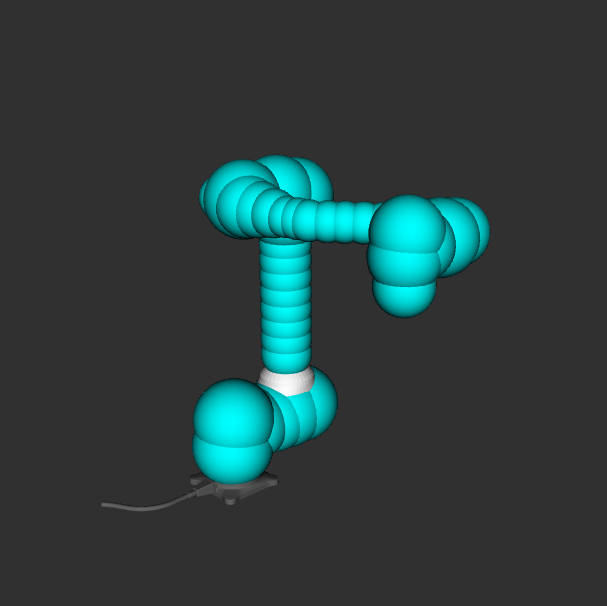
No gripper |
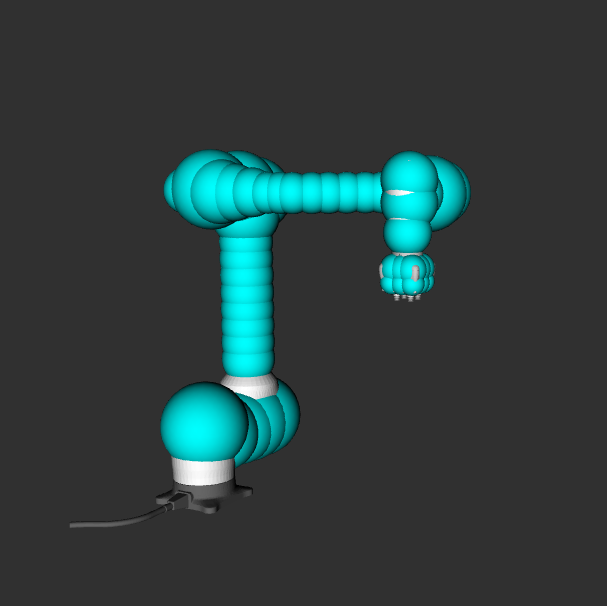
OnRobot VGC10 |
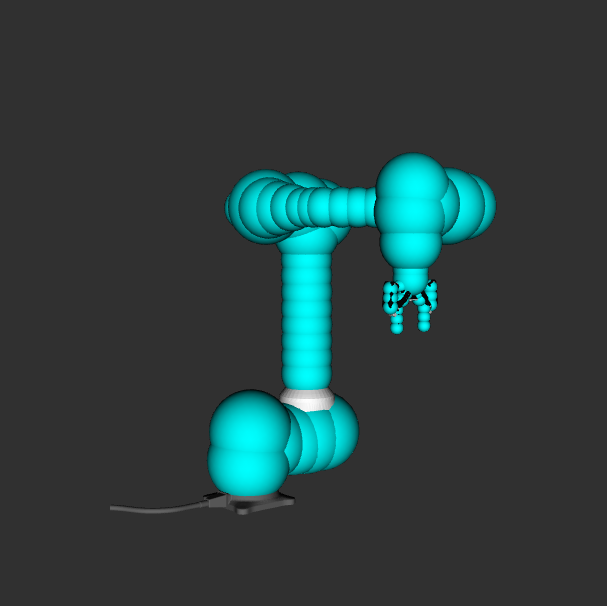
Robotiq 2F-85 |
Warning
Robotiq 2F-85 is supported only in virtual mode
VGC10 gripper controller is not launched automatically and must be started separately
cuMotion Launch Arguments
Argument |
Default |
Description |
|---|---|---|
|
|
Selects the execution environment. |
|
|
Target controller address. Use the real robot controller IP in |
|
|
Robot model selection. Currently, only the M1013 model is supported. |
|
|
End-effector configuration. |
|
|
Enables real-time 3D environment reconstruction using NVBlox. This option requires high GPU memory and should be disabled on laptops or low-memory GPUs to allow cuMotion-only operation. |
|
|
Enables the cuMotion GPU-accelerated motion planning node. |
|
|
Enables the object attach/detach interface for pick-and-place operations. |
|
|
Enables static obstacle generation through the MoveIt PlanningScene. |
|
|
Selects the time source. |
Note
When specifying the host argument, note that different values are required
depending on the operation mode.
For virtual mode, the host address must always be fixed to 127.0.0.1.
For real mode, it is recommended to use an address in the 192.168.137.x range,
which must match the IP configured on the robot’s TP.
cuMotion Planning Demo
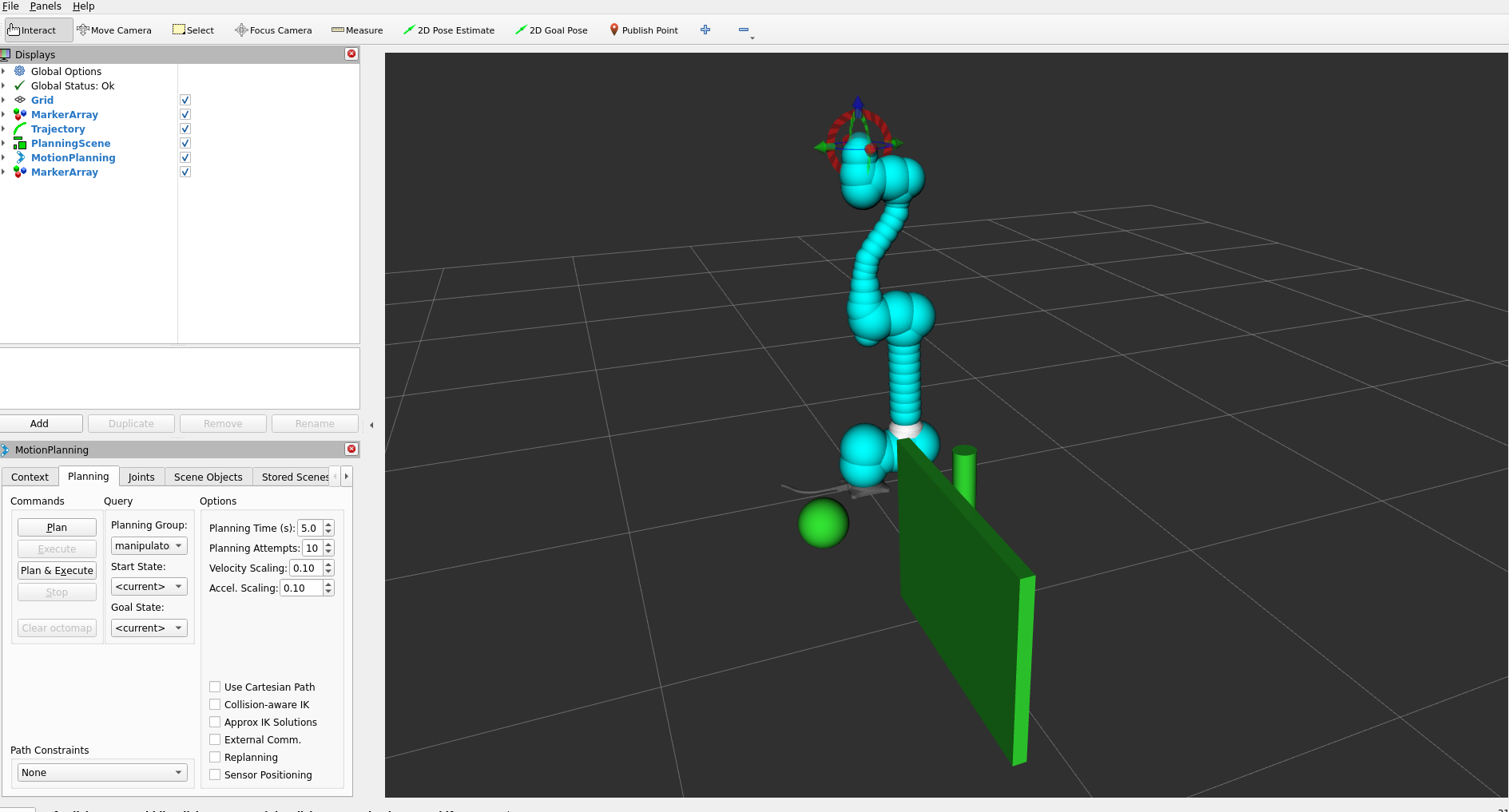
The following examples illustrate how cuMotion performs real-time, GPU-accelerated motion planning directly from the MoveIt RViz interface. Simply dragging the TCP marker and selecting Plan and Execute triggers cuMotion to generate and execute an optimized trajectory on the robot.
1. Basic Plan & Execute
This demo shows a straightforward target pose update in RViz.
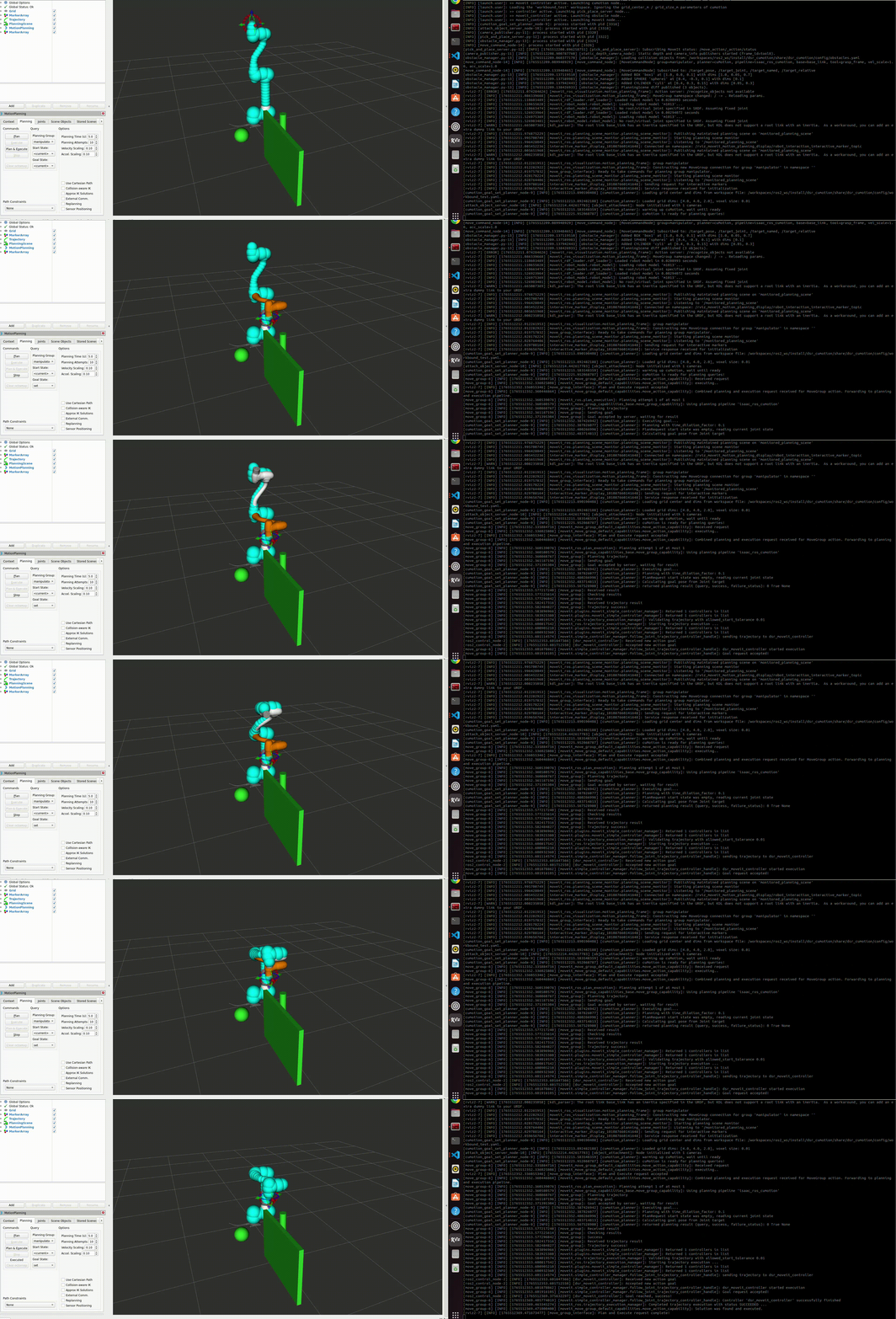
Figure: Basic motion planning with cuMotion from a dragged TCP target.
2. Obstacle-Aware Planning
This example demonstrates how cuMotion dynamically avoids obstacles in the environment. Even with complex constraints, the GPU-accelerated planner quickly searches for a safe, collision-free trajectory.
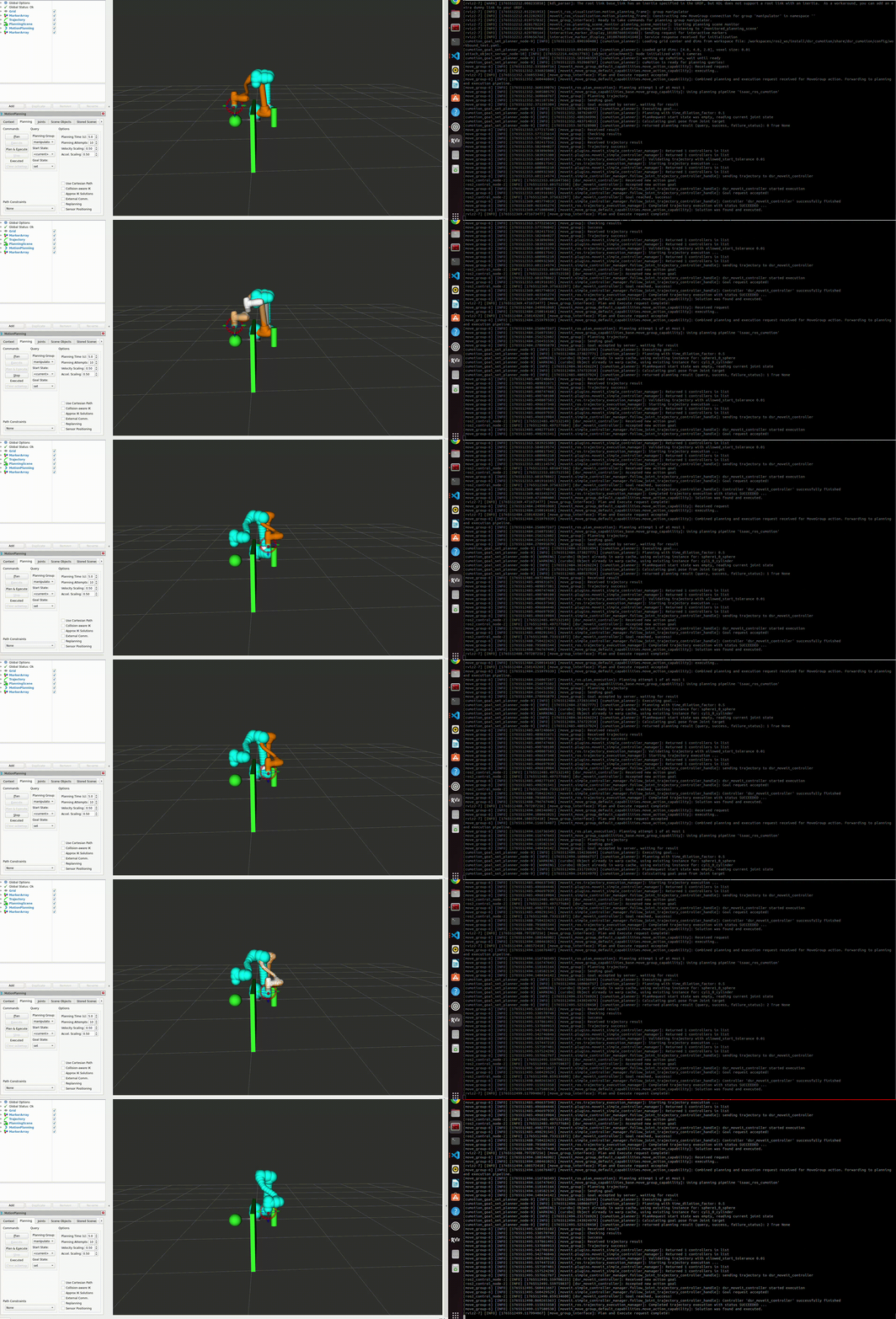
Figure: cuMotion computes an optimized trajectory that safely avoids obstacles.
Motion Command Topics
Pose Command
This command moves the end-effector to an absolute target pose in the robot base frame. It is used when both the target position and orientation need to be explicitly specified.
ros2 topic pub /target_pose dsr_cumotion_msgs/msg/TargetPose "{
  x: 0.35, y: 0.20, z: 0.40,
  rx: 90.0, ry: 0.0, rz: 180.0,
  max_vel_scale: 0.5, max_acc_scale: 0.4
}" --once
TargetPose.msg
This message defines an absolute target TCP pose. The orientation can be represented using either Euler angles or a quaternion.
# TargetPose.msg
# Absolute Cartesian pose command (Euler angles)
# Orientation (either quaternion or euler, one of them can be 0)

float64 x                  # Target position (m)
float64 y
float64 z
float64 rx                 # Target orientation (deg) - Roll
float64 ry                 # Pitch
float64 rz                 # Yaw

# Optional parameters
float64 qx
float64 qy
float64 qz
float64 qw

float64 max_vel_scale      # Velocity scaling (0.0 ~ 1.0, 0 means default)
float64 max_acc_scale      # Acceleration scaling (0.0 ~ 1.0, 0 means default)
Joint Command
This command moves the robot in joint space by directly specifying each joint angle. It is used when only the target joint configuration is required, without defining a Cartesian path.
ros2 topic pub /target_joint dsr_cumotion_msgs/msg/TargetJoint "{
  joints: [0.0, 0.0, 90.0, 0.0, 90.0, 0.0],
  max_vel_scale: 0.6,
  max_acc_scale: 0.4
}" --once
TargetJoint.msg
This message represents a joint-space motion command, where each joint angle is provided as an array.
# TargetJoint.msg
# Joint-space motion command (in radians)

float64[] joints  # Target joint angles (rad)

# Optional parameters
float64 max_vel_scale      # Velocity scaling (0.0 ~ 1.0, 0 means default)
float64 max_acc_scale      # Acceleration scaling (0.0 ~ 1.0, 0 means default)
Named Command
This command moves the robot to a predefined named pose (e.g., home, ready) registered in the NamedExecutor. It is well-suited for repetitive motions and initial pose setup.
ros2 topic pub /target_named dsr_cumotion_msgs/msg/TargetNamed "{
  target_name: 'home',
  max_vel_scale: 0.8,
  max_acc_scale: 0.6
}" --once
TargetNamed.msg
This message sends the name of a predefined target pose as a string.
# TargetNamed.msg
# Named target command (predefined pose name)

string target_name          # Example: "home", "ready"

# Optional parameters
float64 max_vel_scale       # Velocity scaling (0.0 ~ 1.0, 0 means default)
float64 max_acc_scale       # Acceleration scaling (0.0 ~ 1.0, 0 means default)
Relative Command (TCP)
This command performs an incremental (relative) motion based on the current robot state. It is mainly used for fine adjustments (micro adjustments) in either the TCP frame or the base frame.
ros2 topic pub /target_relative dsr_cumotion_msgs/msg/TargetRelative "{
  reference_frame: 'tcp',
  dx: 0.0, dy: 0.00, dz: 0.20,
  drx: 0.0, dry: 0.0, drz: 0.0,
  max_vel_scale: 0.5,
  max_acc_scale: 0.5
}" --once
TargetRelative.msg
This message specifies relative translational (dx, dy, dz) and rotational (drx, dry, drz) increments with respect to the current TCP or base frame.
# TargetRelative.msg
# Relative motion command with respect to the current pose (Euler angles)

string reference_frame     # "base" or "tcp" (default: "tcp")

float64 dx                 # Relative translation (m)
float64 dy
float64 dz
float64 drx                # Relative rotation (deg)
float64 dry
float64 drz

# Optional parameters
float64 max_vel_scale      # Velocity scaling (0.0 ~ 1.0, 0 means default)
float64 max_acc_scale      # Acceleration scaling (0.0 ~ 1.0, 0 means default)
Object Attach / Detach
This node serves as an automatic Pick & Place sequence execution server for the Doosan robot. It performs motion execution using the MoveIt 2 + cuMotion motion planning pipeline, and controls object grasping and releasing in simulation through the Isaac ROS AttachObject action, enabling both attach (grasp) and detach (release) operations.
Attach
ros2 service call /attach_detach_command dsr_cumotion_msgs/srv/PickPlace "{motion_type: 0}"
Detach
ros2 service call /attach_detach_command dsr_cumotion_msgs/srv/PickPlace "{motion_type: 1}"
Obstacle Manager
The obstacle_manager node is a dynamic collision object manager used by both MoveIt 2 and the cuMotion motion planning pipeline.
This node loads predefined static and mesh-based obstacles from a YAML configuration file at startup and publishes them to the
MoveIt Planning Scene.
At initialization, the node reads the specified YAML file and loads the following obstacle types:
BOXSPHERECYLINDERMESH
Each collision object contains the following information:
- Reference coordinate frame (frame_id)
- 3D position
- Optional orientation
- Geometric dimensions or mesh scale
For MESH objects, the node uses the trimesh library to load a 3D mesh file (e.g., STL) and converts it into
a ROS-compatible collision object.
In addition, the node subscribes to the /collision_remove topic, allowing:
Selective removal of a single collision object by ID
Complete removal of all collision objects by publishing an empty string
This enables dynamic environment updates during runtime while maintaining a consistent planning scene for cuMotion and MoveIt 2.
Usage
The default obstacle configuration file is: dsr_cumotion/config/obstacle.yaml
If frame_id is not explicitly specified, it is automatically set to: base_link
Example YAML Configuration
objects:
  - id: {name}
    type: cylinder
    position: [0.0, 0,0, 0.0]
    dimensions: [0.0, 0.0]   # radius, height

  - id: {name}
    type: cylinder
    position: [0.0, 0.0, 0.0]
    dimensions: [0.0, 0.0]   # radius, height

  - id: {name}
    type: cylinder
    position: [0.0, 0.0, 0.0]
    dimensions: [0.0, 0.0]   # radius, height

  - id: {name}
    type: mesh
    mesh_path: "path"         # file path
    position: [0.0, 0.0, 0.0]
    orientation: [0.0, 0.0, 0.0, 1.0]
    scale: [1.0, 1.0, 1.0]
Collision Object Removal
Remove a specific object by ID:
ros2 topic pub /collision_remove std_msgs/msg/String "{data: 'cyl1'}" --once
Remove all collision objects:
ros2 topic pub /collision_remove std_msgs/msg/String "{data: ''}" --once
Launch Integration
The obstacle manager is automatically enabled when launching cuMotion with:
obstacle:=true or false
Example:
ros2 launch dsr_cumotion start_cumotion.launch.py \
  mode:=virtual \
  host:=127.0.0.1 \
  obstacle:=true
Package Overview
This section describes the core packages that form the Doosan + Isaac ROS + cuMotion integrated system, including their roles and key responsibilities within the overall architecture.
dsr_cumotion
Role: Core Integration Package for Doosan, MoveIt 2, and cuMotion
The dsr_cumotion package is the central integration layer of the system.
It connects the following components into a single execution pipeline:
Doosan ROS 2 hardware interface
MoveIt 2 motion planning framework
NVIDIA cuMotion planner execution
Pick-and-place task server
Planning scene and static obstacle management
dsr_cumotion_goal_interface
Role: Motion Command Dispatch Interface
The dsr_cumotion_goal_interface package receives high-level user commands
and acts as the command gateway that forwards them to the
MoveIt 2 + cuMotion execution pipeline.
Subscribes to the
/target_posetopicSends motion goals to the MoveIt 2 Action Server
Selects the appropriate execution strategy based on the command type:
Absolute pose motion
Joint-space motion
Named pose motion
Relative TCP motion
dsr_cumotion_msgs
Role: System-Wide Message and Service Interface Definition Package
The dsr_cumotion_msgs package defines all custom ROS 2 messages and service types
used throughout the system for motion-level and task-level control.
Defines the unified motion command message that supports:
Absolute pose commands
Joint commands
Named target commands
Relative TCP commands
Defines the Pick-and-Place task control service interface, including:
Approach → attach → retreat sequence
Approach → detach → retreat sequence
Provides the standard API contract between:
User applications
Command interface nodes
Planning and execution subsystems