Real-Time Obstacle Avoidance with cuMotion(nvblox) tutorial
Overview
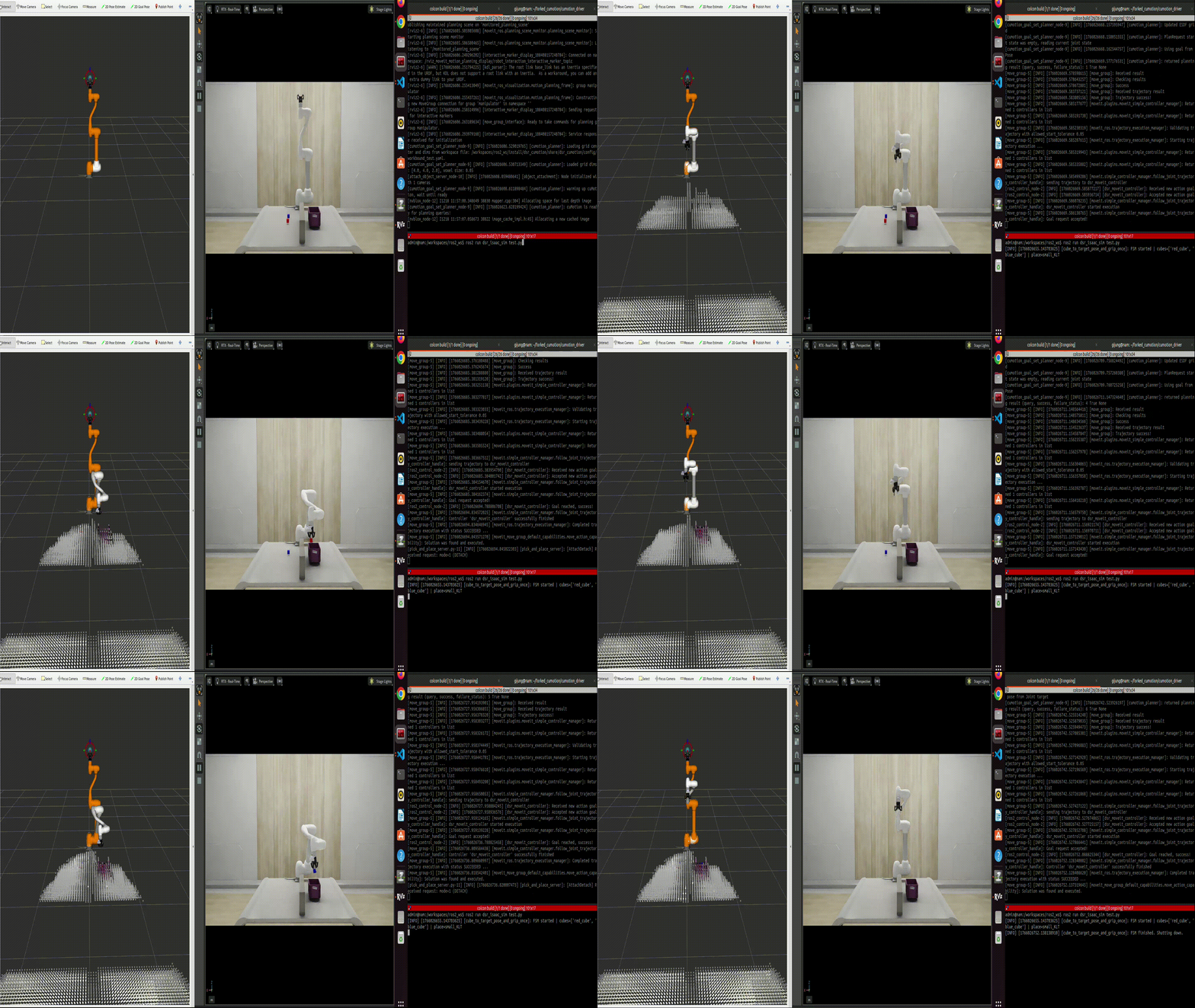
This tutorial explains how to use NVIDIA’s nvblox library for cuMotion-based obstacle avoidance motion planning. It also describes how to integrate Isaac Sim so that the simulated environment inside Isaac Sim is reconstructed as obstacles using nvblox, enabling obstacle-aware motion planning with cuMotion in a simulation environment.
Note
This tutorial is based on the following validated environment:
Isaac ROS: Release 3.2
NVIDIA Driver: 570
CUDA: 12.8 (Docker base: 12.6)
ROS 2: Humble
Isaac Sim: 4.5
System Prerequisites
Before proceeding with this tutorial, you must complete the Isaac Sim Tutorial and verify that Isaac Sim is installed and running correctly. In addition, complete the cuMotion Tutorial to ensure that cuMotion is functioning properly. This tutorial should be followed only after both prerequisite tutorials have been successfully completed.
Warning
This tutorial describes nvblox usage based on Release 3.2. Some details may differ when using other versions.
nvblox requires a high-performance GPU. Please ensure that your system meets the recommended hardware requirements.
Workspace Setup
This section explains how to install and configure the nvblox package.
1. Clone the nvblox package
Use the following command to clone the nvblox package into your ROS 2 workspace.
cd ~/workspaces/isaac_ros-dev/src
git clone --recursive -b release-3.2 https://github.com/NVIDIA-ISAAC-ROS/isaac_ros_nvblox.git
2. Install dependencies and build
Use the following commands to install dependencies and build the workspace. (The same code used in the previous cuMotion tutorial is used here.)
cd ~/ros2_ws/src/cumotion/dsr_cumotion/docker
chmod +x startup-doosan.sh
./startup-doosan.sh

cd ~/workspaces/isaac_ros-dev/src/isaac_ros_common/scripts
./run_dev.sh
If you encounter dependency-related issues during rebuild, run the following commands inside the docker and then rebuild.
cd ~/workspaces/isaac_ros-dev/src/isaac_ros_nvblox
rosdep update
rosdep install --from-paths src --ignore-src -r -y

cd ~/workspaces/isaac_ros-dev
colcon build

source /opt/ros/humble/setup.bash
source /workspaces/isaac_ros-dev/install/setup.bash
source /workspaces/ros2_ws/install/setup.bash
Launching nvblox with cuMotion
This section explains how to run the launch code. This tutorial is executed in a virtual environment.
Command
1. Launch cuMotion and nvblox
ros2 launch dsr_cumotion start_cumotion_isaacsim.launch.py \
  mode:=virtual host:=127.0.0.1
2. Launch Isaac Sim
This command should be run inside the Isaac Sim docker, not the Isaac ROS docker.
cd ~/ros2_ws/src/doosanrobotics_cumotion_driver/dsr_isaac_sim
chmod +x run_isaac_sim.sh
./run_isaac_sim.sh
./python.sh $ROS2_WS/dsr_isaac_sim/isaac_sim/isaac_sim.py
Note
This launch file runs both the cuMotion and nvblox nodes together. If you want to modify the current nvblox settings, edit the dsr_cumotion/config/nvblox_node.yaml file.
3. Run the demo code
Open a new terminal, connect to the container using the command below, and then run the demo code with the following command.
docker exec -it -u admin isaac_ros_dev-x86_64-container bash
ros2 run dsr_isaac_sim isaac_demo.py