cuMotion Integration(Jetson thor)
Overview
cuMotion provides GPU-accelerated motion planning for Doosan robots by integrating NVIDIA Isaac ROS with MoveIt 2 and the ROS 2 control stack.
This document describes the complete procedure to configure and build an integrated development environment combining NVIDIA Isaac ROS (Release 4.0), Jetson AGX Thor, and Doosan ROS 2 (Jazzy) for GPU-accelerated motion planning using cuMotion and MoveIt 2.
Note
This tutorial is based on the following validated environment:
Isaac ROS: Release 4.0
Jetpack: 7.0
NVIDIA Driver: 570
ROS 2: Jazzy
HardwareL Jetson AGX Thor
Warning
This tutorial does not support virtual mode, as the Doosan emulator image required for execution is only available for x86_64 and does not support arm64-based environments.
System Prerequisites
Before configuring cuMotion, you must complete the official Isaac ROS base setup provided by NVIDIA. This ensures:
The following steps must be completed in order before proceeding.
Jetson Thor Flashing and JetPack Installation
Follow the official NVIDIA documentation to flash Jetson Thor and install JetPack 7.0:
Isaac ROS Setup for Jetson Thor
Complete the Isaac ROS environment setup for Jetson Thor using the following documentation:
Official Isaac ros setup guide
Note
In official setup guide, you must complete both steps:
Compute setup
Developer Environment Setup
Warning
On Jetson Thor systems, CUDA 13 or later and NVIDIA Driver 580 or newer are required. Using older drivers (e.g., the 560 series) may cause runtime incompatibilities with GPU-accelerated Docker containers, resulting in Isaac ROS or cuMotion not functioning properly.
Workspace Setup
This section describes the process of creating separate and independent workspaces for the NVIDIA Isaac ROS cuMotion stack and the Doosan ROS 2 robot control stack. By isolating these two environments, the system maintains a clean separation between GPU-accelerated core motion planning (Isaac ROS + cuMotion) and vendor-specific robot hardware control (Doosan ROS 2).
Isaac ROS Workspace
All repositories must be checked out to the release-4.0 branch to ensure compatibility.
mkdir -p ~/workspaces/isaac_ros-dev/src
echo 'export ISAAC_ROS_WS="${HOME}/workspaces/isaac_ros-dev/"' >> ~/.bashrc
source ~/.bashrc
cd ~/workspaces/isaac_ros-dev/src

git clone --recurse-submodules -b release-4.0 \
https://github.com/NVIDIA-ISAAC-ROS/isaac_ros_common.git isaac_ros_common

git clone --recurse-submodules -b release-4.0 \
https://github.com/NVIDIA-ISAAC-ROS/isaac_ros_cumotion.git isaac_ros_cumotion
Doosan ROS 2 + cuMotion Workspace
mkdir -p ~/ros2_ws/src
cd ~/ros2_ws/src

git clone -b jazzy https://github.com/DoosanRobotics/doosan-robot2.git
git clone -b jetson_thor https://github.com/DoosanRobotics/doosanrobotics_cumotion_driver
Container Execution
This section integrates the Doosan cuMotion Docker environment with the Isaac ROS workspace by copying the required Docker build and runtime scripts.
Note
For ISAAC ROS 4.0, the ISAAC ROS CLI tool is used to manage the Docker-based development environment. Therefore, additional ISAAC ROS CLI configuration is required to integrate cuMotion. To define custom Docker image layers, the required files and scripts must be placed inside the previously configured ${ISAAC_ROS_WS} directory so that an integrated image can be built using the –build-local option.
/usr/lib/isaac-ros-cli: contains scripts such as run_dev.py used for Docker execution
/etc/isaac-ros-cli: contains Dockerfiles and build configuration files
Command
The following commands are written based on the workspace directory structure created in the previous steps. They create user-level files for custom Docker configuration.
Copying the docker/ and scripts/ Directories
cp -r ~/ros2_ws/src/cumotion/docker   ~/workspaces/
cp -r ~/ros2_ws/src/cumotion/scripts ~/workspaces/
After copying, the workspace directory structure should be organized as follows:
workspaces/
├── isaac_ros-dev/
├── docker/
└── scripts/
File and Script Descriptions
The following files are copied using the commands above and do not require modification.
/workspaces/scripts/.build_image_layers.yaml
This file defines the base image_key. It is used as shown below, and no additional custom layers are added.
image_key_order:
   - noble.ros2_jazzy
cache_to_registry_names: []
cache_from_registry_names:
   - nvcr.io/nvidia/isaac/ros
remote_builder: []
/workspaces/scripts/.isaac_ros_common-config
This file specifies the locations of Dockerfiles. It is used as shown below. If the Dockerfile location changes, the corresponding path must be added here.
CONFIG_DOCKER_SEARCH_DIRS=(
   ${ISAAC_ROS_WS}/../docker
   /usr/lib/isaac-ros-cli/docker
)
BASE_DOCKER_REGISTRY_NAMES=(
   nvcr.io/nvidia/isaac/ros
)
/workspaces/scripts/.isaac_ros_dev-dockerargs
This file adds configuration options used when running the Docker container.
-v `realpath ~/ros2_ws`:/workspaces/ros2_ws
-v /var/run/docker.sock:/var/run/docker.sock
/workspaces/docker
This directory contains the Dockerfile and execution scripts required for Doosan cuMotion integration. Dockerfile.doosan includes the necessary configuration to use the Doosan Robot2 packages.
Isaac ROS CLI Configuration
This section configures the Isaac ROS Command Line Interface (CLI) to enable Docker-based multi-layer image composition with the Doosan integration layer. This configuration allows Isaac ROS to recognize the custom Doosan Docker image layer during the build process.
mkdir -p ~/workspaces/isaac_ros-dev/.isaac-ros-cli
/workspaces/isaac_ros-dev/.isaac-ros-cli/config.yaml
This file is a configuration file that defines and adds additional layers.
cat << 'EOF' > config.yaml
environment:
   mode: docker

docker:
   image:
   additional_image_keys:
      - doosan
EOF
Docker Image Layer Composition
The integrated Docker image is built using a multi-layer image composition strategy. Each layer provides a dedicated software role:
nobleBase Ubuntu operating system with NVIDIA CUDA runtimeros2_jazzyIsaac ROS Jazzy middleware and core robotics stackdoosanDoosan ROS 2 hardware interface and cuMotion integration layer
This layered design ensures a clean separation between: - Operating system and CUDA runtime - Isaac ROS middleware - Doosan robot-specific control software
Building the Integrated Docker Image
This step builds the fully integrated Docker image that includes:
Isaac ROS
cuMotion
Doosan ROS 2 hardware interface
All dependent dependencies
isaac-ros activate --build-local
During this process, the following actions are performed automatically:
Multi-layer Docker image build
Isaac ROS development container initialization
Execution of Doosan-specific build hooks
Full
colcon buildof the integrated workspace
ROS Environment Setup
Command
source /opt/ros/humble/setup.bash
source /workspaces/isaac_ros-dev/install/setup.bash
source /workspaces/ros2_ws/install/setup.bash
cuMotion Launch
This section launches the full cuMotion-based motion planning and execution pipeline for the Doosan robot in either real hardware mode or virtual simulation mode.
In ``real mode, the system establishes a direct network connection to the physical robot controller using the specified IP address
and executes trajectories on the real hardware through the ROS 2 control interface.
In virtual mode, the same motion planning pipeline is executed against a
simulated robot instance, allowing safe algorithm testing, parameter tuning, and integration validation without physical hardware.
Command
Real Robot Mode
ros2 launch dsr_cumotion start_cumotion.launch.py \
mode:=real host:=192.168.137.100 gripper:=true
Virtual Robot Mode
ros2 launch dsr_cumotion start_cumotion.launch.py \
mode:=virtual host:=127.0.0.1 gripper:=true
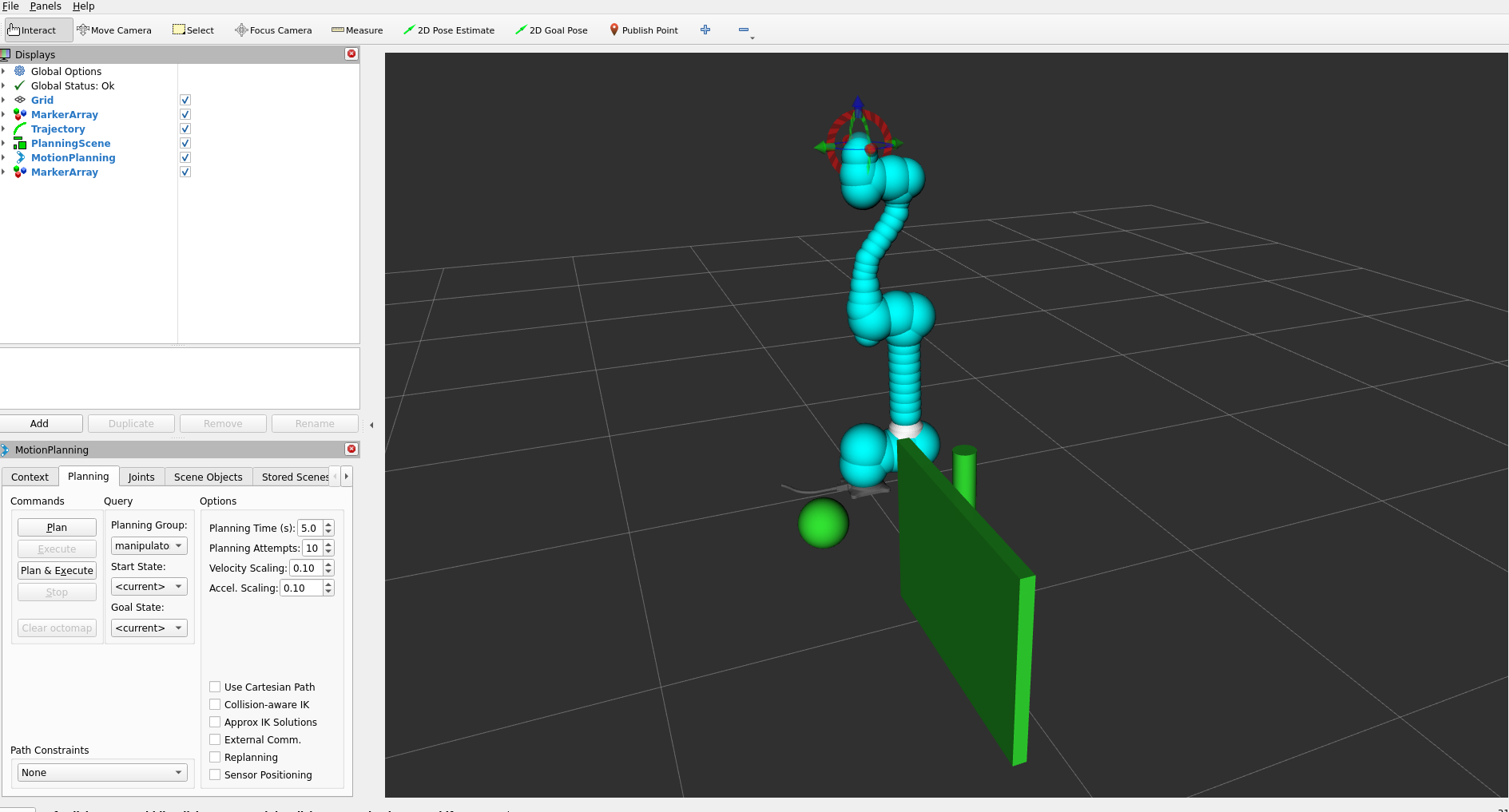
cuMotion Launch Arguments
Argument |
Default |
Description |
|---|---|---|
|
|
Selects the execution environment. |
|
|
Target controller address. Use the real robot controller IP in |
|
|
Robot model selection. Currently, only the M1013 model is supported. |
|
|
End-effector configuration. |
|
|
Enables the cuMotion GPU-accelerated motion planning node. |
|
|
Enables the object attach/detach interface for pick-and-place operations. |
|
|
Enables static obstacle generation through the MoveIt PlanningScene. |
|
|
Selects the time source. |
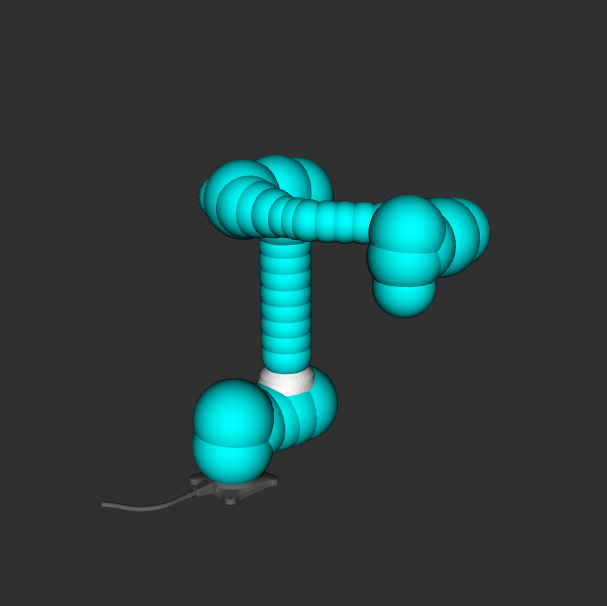
No gripper |
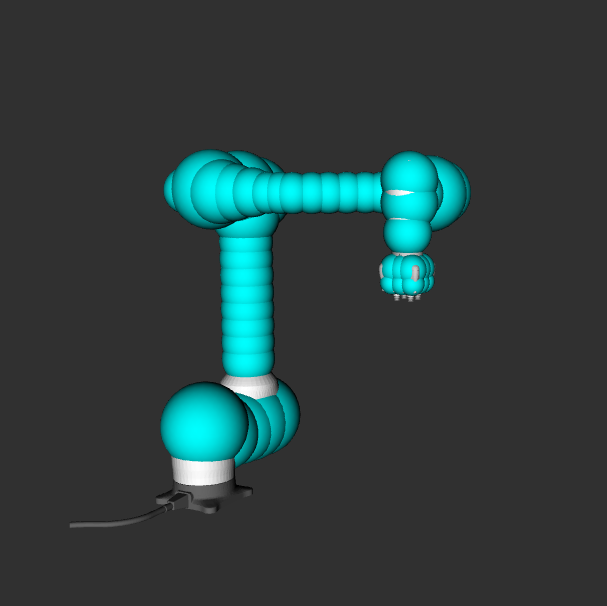
OnRobot VGC10 |
Note
When specifying the host argument, note that different values are required
depending on the operation mode.
For virtual mode, the host address must always be fixed to 127.0.0.1.
For real mode, it is recommended to use an address in the 192.168.137.x range,
which must match the IP configured on the robot’s TP.
cuMotion Planning Demo
The following examples illustrate how cuMotion performs real-time, GPU-accelerated motion planning directly from the MoveIt RViz interface. Simply dragging the TCP marker and selecting Plan and Execute triggers cuMotion to generate and execute an optimized trajectory on the robot.
1. Basic Plan & Execute
This demo shows a straightforward target pose update in RViz.
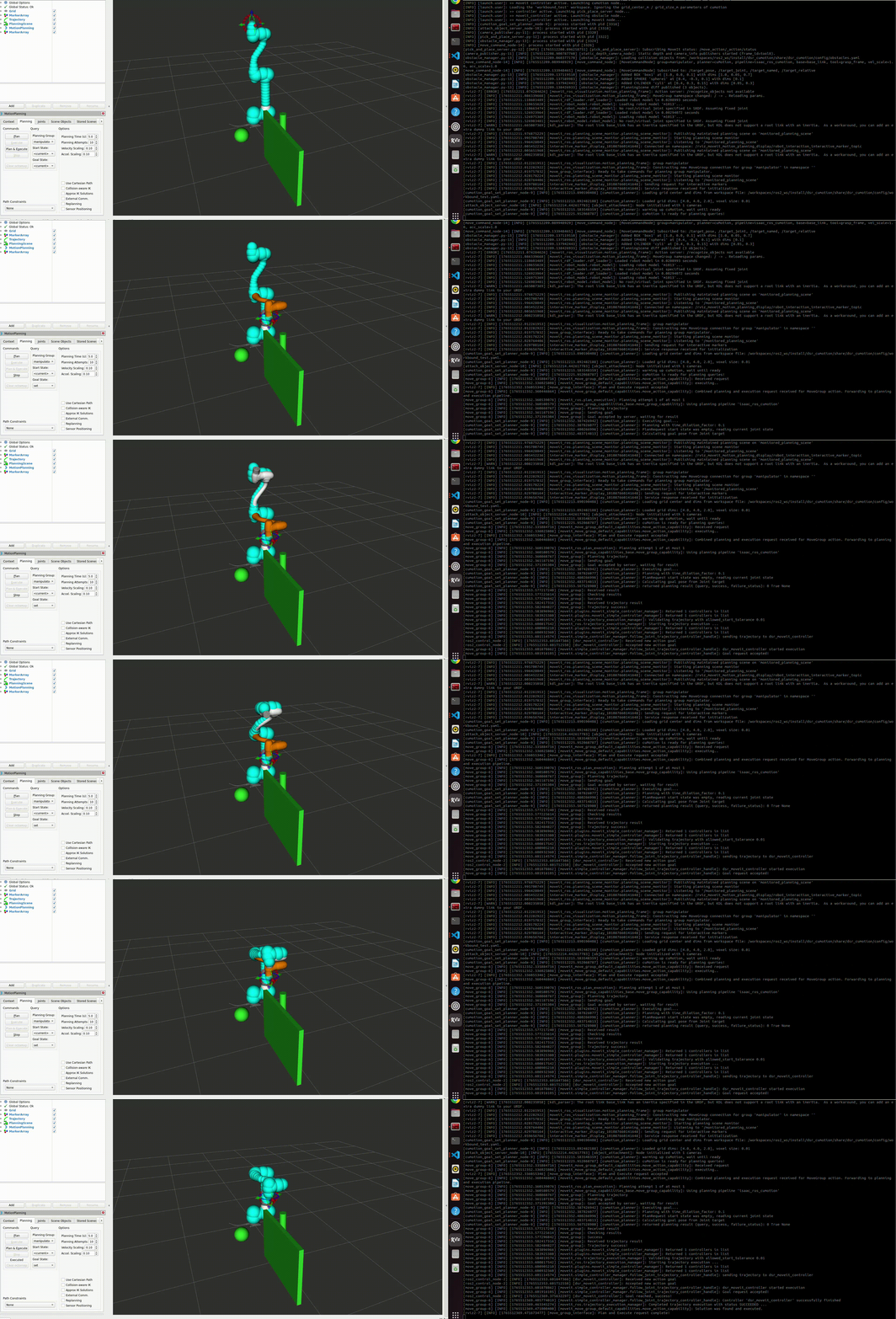
Figure: Basic motion planning with cuMotion from a dragged TCP target.
2. Obstacle-Aware Planning
This example demonstrates how cuMotion dynamically avoids obstacles in the environment. Even with complex constraints, the GPU-accelerated planner quickly searches for a safe, collision-free trajectory.
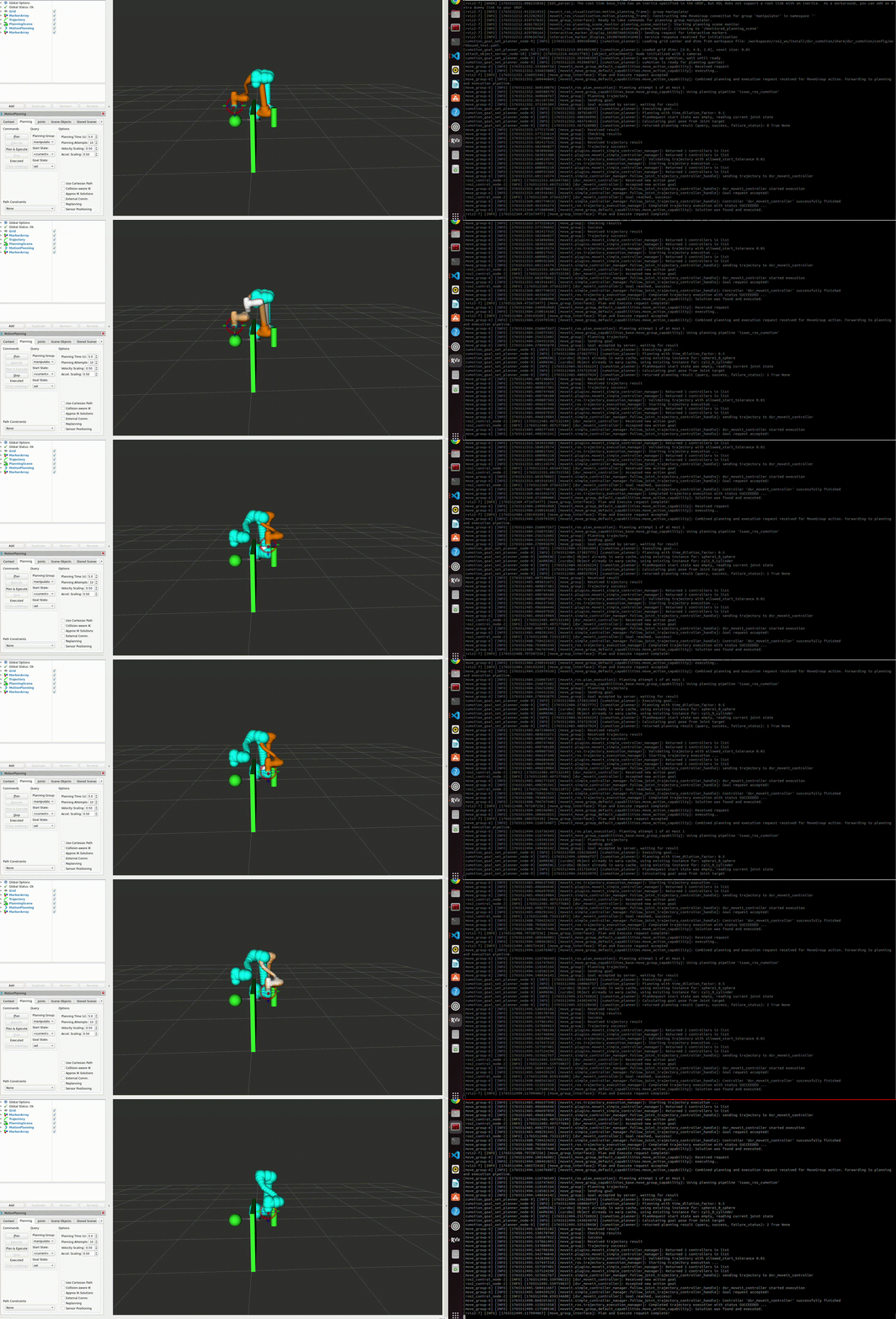
Figure: cuMotion computes an optimized trajectory that safely avoids obstacles.
Motion Command Topics
Pose Command
This command moves the end-effector to an absolute target pose in the robot base frame. It is used when both the target position and orientation need to be explicitly specified.
# euler
ros2 topic pub /target_pose dsr_cumotion_msgs/TargetPose "{move_type: 'pose',
   x: 0.0, y: 0.0, z: 0.0,
   rx: 0.0, ry: 0.0, rz: 0.0,
   max_vel_scale: 0.5, max_acc_scale: 0.4}" --once

# Quaternion
ros2 topic pub /target_pose dsr_cumotion_msgs/TargetPose "{move_type: 'pose',
   x: 0.0, y: 0.0, z: 0.0,
   qx: 0.0, qy: 0.0, qz: 0.0, qw: 1.0,
   max_vel_scale: 0.8, max_acc_scale: 0.6}" --once
Joint Command
This command moves the robot in joint space by directly specifying each joint angle. It is used when only the target joint configuration is required, without defining a Cartesian path.
ros2 topic pub /target_pose dsr_cumotion_msgs/TargetPose "{move_type: 'joint',
   joints: [0.0, 0.0, 0.0, 0.0, 0.0, 0.0],
   max_vel_scale: 0.6, max_acc_scale: 0.4}" --once
Named Command
This command moves the robot to a predefined named pose (e.g., home, ready) registered in the NamedExecutor. It is well-suited for repetitive motions and initial pose setup.
ros2 topic pub /target_pose dsr_cumotion_msgs/TargetPose "{move_type: 'named',
   name: 'HOME',
   max_vel_scale: 0.6, max_acc_scale: 0.5}" --once
Relative Command (TCP)
This command performs an incremental (relative) motion based on the current robot state. It is mainly used for fine adjustments (micro adjustments) in either the TCP frame or the base frame.
ros2 topic pub /target_pose dsr_cumotion_msgs/TargetPose "{move_type: 'relative',
   dx: 0.0, dy: 0.0, dz: 0.0,
   drx: 0.0, dry: 0.0, drz: 0.0,
   max_vel_scale: 0.5, max_acc_scale: 0.5}" --once
TargetPose.msg
string move_type      # "pose", "joint", "named", or "relative"

# --- Absolute / Relative Position ---
float32 x
float32 y
float32 z

# --- Orientation (either quaternion or euler, one of them can be 0) ---
float32 qx
float32 qy
float32 qz
float32 qw

float32 rx            # Euler roll (deg)
float32 ry            # Euler pitch (deg)
float32 rz            # Euler yaw (deg)

# --- Relative motion offsets (for move_type='relative') ---
float32 dx            # delta x (m)
float32 dy            # delta y (m)
float32 dz            # delta z (m)
float32 drx           # delta roll (deg)
float32 dry           # delta pitch (deg)
float32 drz           # delta yaw (deg)

# --- Joint motion ---
float32[6] joints

# --- Named target ---
string name

# --- Vel, Acc scaling factor ---
float64 max_vel_scale
float64 max_acc_scale
int8 retry_num
Note
retry_num increases planning time and attempt count by a factor of
1 + retry_num.
For example: 1→2×, 2→3×, 3→4×.
If omitted (default 0), the planner uses the standard settings:
5 s planning time and 10 attempts.
Object Attach / Detach
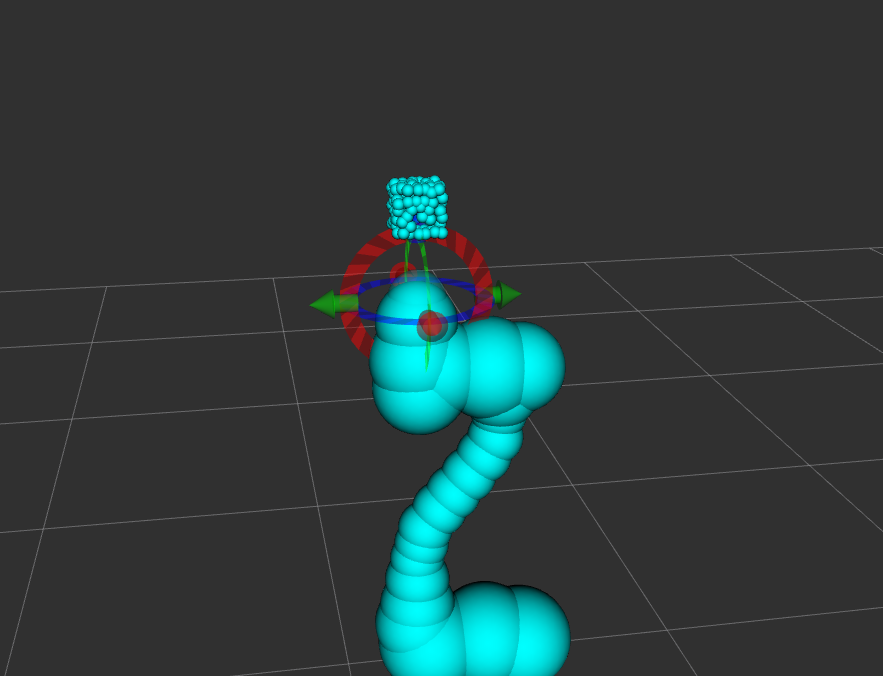
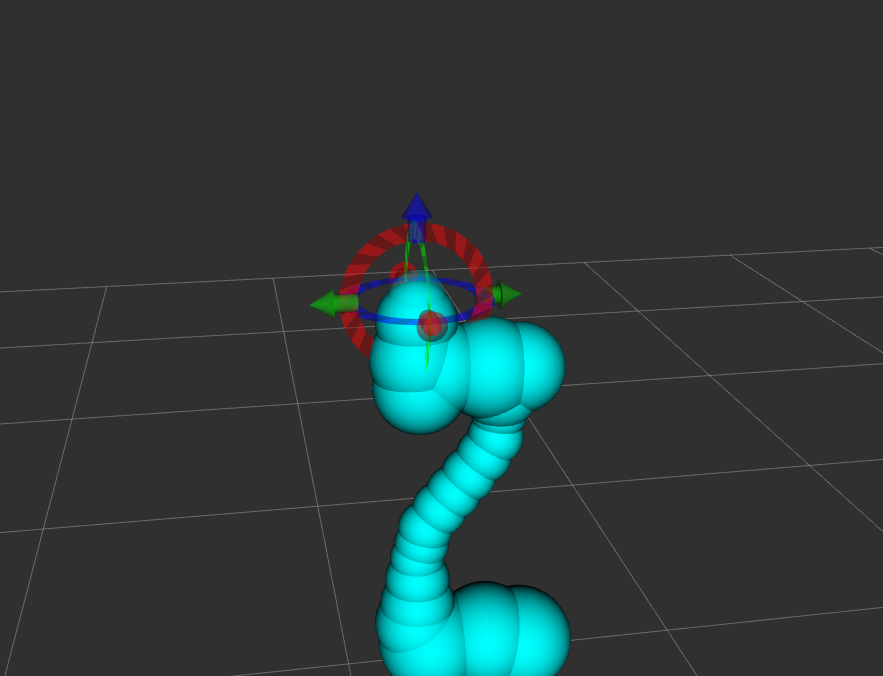
This node serves as an automatic Pick & Place sequence execution server for the Doosan robot. It performs motion execution using the MoveIt 2 + cuMotion motion planning pipeline, and controls object grasping and releasing in simulation through the Isaac ROS AttachObject action, enabling both attach (grasp) and detach (release) operations.
Attach
ros2 service call /attach_detach_command dsr_cumotion_msgs/srv/PickPlace "{motion_type: 0}"
Detach
ros2 service call /attach_detach_command dsr_cumotion_msgs/srv/PickPlace "{motion_type: 1}"
Obstacle Manager
The obstacle_manager node is a dynamic collision object manager used by both MoveIt 2 and the cuMotion motion planning pipeline.
This node loads predefined static and mesh-based obstacles from a YAML configuration file at startup and publishes them to the
MoveIt Planning Scene.
At initialization, the node reads the specified YAML file and loads the following obstacle types:
BOXSPHERECYLINDERMESH
Each collision object contains the following information:
- Reference coordinate frame (frame_id)
- 3D position
- Optional orientation
- Geometric dimensions or mesh scale
For MESH objects, the node uses the trimesh library to load a 3D mesh file (e.g., STL) and converts it into
a ROS-compatible collision object.
In addition, the node subscribes to the /collision_remove topic, allowing:
Selective removal of a single collision object by ID
Complete removal of all collision objects by publishing an empty string
This enables dynamic environment updates during runtime while maintaining a consistent planning scene for cuMotion and MoveIt 2.
Usage
The default obstacle configuration file is: dsr_cumotion/config/obstacle.yaml
If frame_id is not explicitly specified, it is automatically set to: base_link
Example YAML Configuration
objects:
  - id: {name}
    type: cylinder
    position: [0.0, 0,0, 0.0]
    dimensions: [0.0, 0.0]   # radius, height

  - id: {name}
    type: cylinder
    position: [0.0, 0.0, 0.0]
    dimensions: [0.0, 0.0]   # radius, height

  - id: {name}
    type: cylinder
    position: [0.0, 0.0, 0.0]
    dimensions: [0.0, 0.0]   # radius, height

  - id: {name}
    type: mesh
    mesh_path: "path"         # file path
    position: [0.0, 0.0, 0.0]
    orientation: [0.0, 0.0, 0.0, 1.0]
    scale: [1.0, 1.0, 1.0]
Collision Object Removal
Remove a specific object by ID:
ros2 topic pub /collision_remove std_msgs/msg/String "{data: 'cyl1'}" --once
Remove all collision objects:
ros2 topic pub /collision_remove std_msgs/msg/String "{data: ''}" --once
Launch Integration
The obstacle manager is automatically enabled when launching cuMotion with:
obstacle:=true or false
Example:
ros2 launch dsr_cumotion start_cumotion.launch.py \
  mode:=virtual \
  host:=127.0.0.1 \
  obstacle:=true
Package Overview
This section describes the core packages that form the Doosan + Isaac ROS + cuMotion integrated system, including their roles and key responsibilities within the overall architecture.
dsr_cumotion
Role: Core Integration Package for Doosan, MoveIt 2, and cuMotion
The dsr_cumotion package is the central integration layer of the system.
It connects the following components into a single execution pipeline:
Doosan ROS 2 hardware interface
MoveIt 2 motion planning framework
NVIDIA cuMotion planner execution
Pick-and-place task server
Planning scene and static obstacle management
dsr_cumotion_goal_interface
Role: Motion Command Dispatch Interface
The dsr_cumotion_goal_interface package receives high-level user commands
and acts as the command gateway that forwards them to the
MoveIt 2 + cuMotion execution pipeline.
Subscribes to the
/target_posetopicSends motion goals to the MoveIt 2 Action Server
Selects the appropriate execution strategy based on the command type:
Absolute pose motion
Joint-space motion
Named pose motion
Relative TCP motion
dsr_cumotion_msgs
Role: System-Wide Message and Service Interface Definition Package
The dsr_cumotion_msgs package defines all custom ROS 2 messages and service types
used throughout the system for motion-level and task-level control.
Defines the unified motion command message that supports:
Absolute pose commands
Joint commands
Named target commands
Relative TCP commands
Defines the Pick-and-Place task control service interface, including:
Approach → attach → retreat sequence
Approach → detach → retreat sequence
Provides the standard API contract between:
User applications
Command interface nodes
Planning and execution subsystems